Guide
'This Meeting Is Being Transcribed': What It Means and Who Sees Your Words
Summary of the Article
The banner is exactly what it says: a speech-to-text tool is writing down what everyone says. It does not mean the meeting is being recorded, because transcription and recording are separate features in Zoom and Microsoft Teams.
- Zoom: the message can come from live captions, the meeting transcript, Zoom AI (formerly AI Companion), My Notes, or a cloud recording transcript. Attendees can usually click "Ask host to stop transcription."
- Microsoft Teams: transcription is started by the organizer or presenters, everyone sees a notification, and you can hide your name in captions and transcripts.
- Your phone: a "this message is being transcribed" style note usually means dictation or live captions on your own device, not a meeting tool.
- You almost never control this as an attendee. The host or an admin sets it, so your main levers are asking, objecting, or leaving.
A few words under a banner do a lot of hiding. The notice tells you words are being captured. It usually does not tell you who turned it on, which feature is running, where the text is stored, or who can read it later. This article decodes the common versions of that message and shows what control you actually have.
What the banner means, in plain words
"This meeting is being transcribed" means software is converting everyone's speech into text in real time. That is different from being recorded:
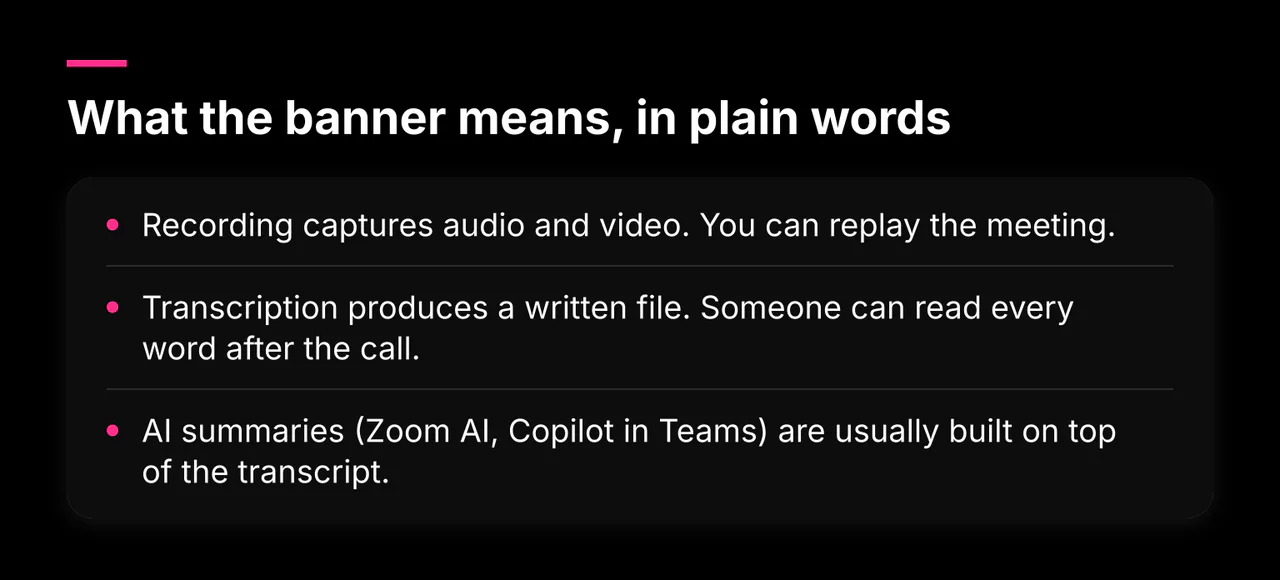
- Recording captures audio and video. You can replay the meeting.
- Transcription produces a written file. Someone can read every word after the call.
- AI summaries (Zoom AI, Copilot in Teams) are usually built on top of the transcript.
The two overlap but are separate switches. Zoom's own support documentation treats audio transcription of cloud recordings as its own setting, and Teams lets organizers pick recording and transcription independently. So no, a transcription notice does not tell you whether the meeting is also recorded. You have to check for the recording indicator separately.
What transcription does capture is complete: everything said, attributed to speakers, with timestamps. In Teams, obscenities are even masked with asterisks, which tells you the text is stored as-is, not filtered. What the banner does not tell you is which feature started it. That is the next question.
Zoom: five features can trigger the message
Zoom shows similar wording for several different features, so the same sentence can mean five things:
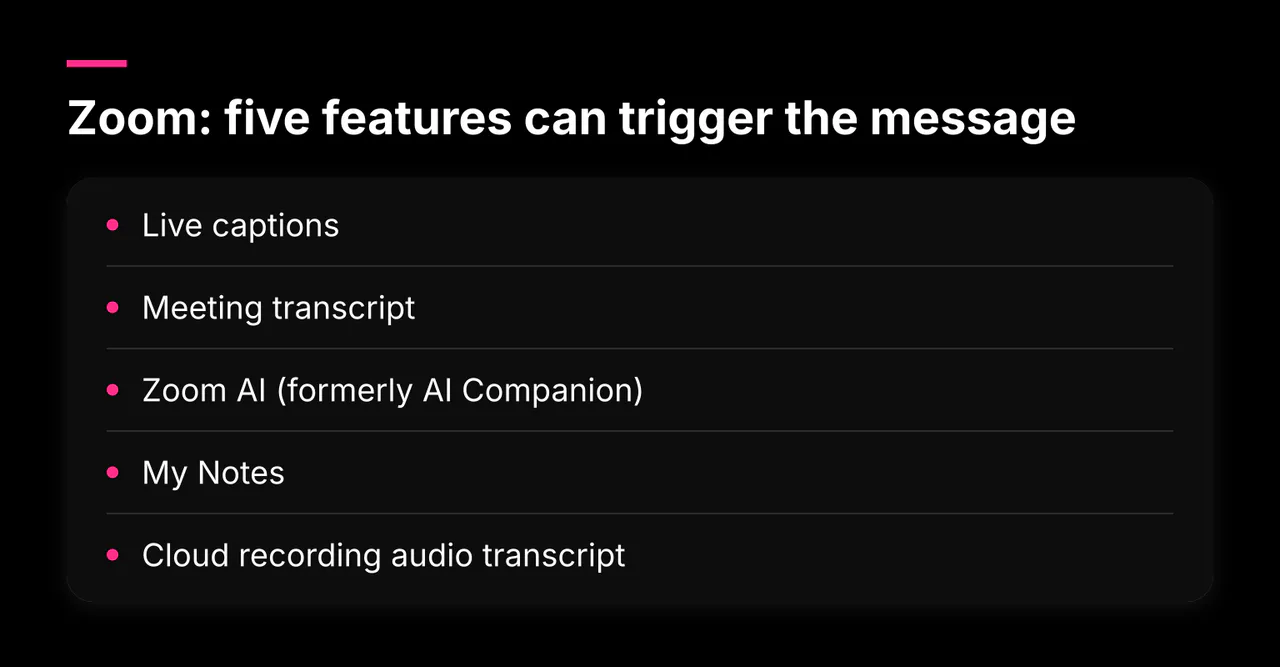
- Live captions. Automated captions turned on for the meeting. Usually only your view of the captions matters, and there may be no stored transcript.
- Meeting transcript. A full live transcript in the side panel. The host can start it, and participants can request it, which sends the host a prompt to accept or decline.
- Zoom AI (formerly AI Companion). This is the source of the specific wording "This meeting is being transcribed for AI Companion," and a variant that appears when the meeting is being recorded at the same time. If you see a flashing star at the top of the screen, click it to see which AI features are enabled.
- My Notes. A personal AI note-taking feature that can transcribe a participant's own audio. Zoom hosts can stop it for a specific person from the Participants panel.
- Cloud recording audio transcript. If the meeting is being recorded to the cloud, Zoom can attach a transcript automatically. Stopping the recording stops this one.
University IT guides, including the University of Idaho's AI Companion guide, confirm that participants see a notification when AI Companion features are on, and that participants can request the host turn it off. AI Companion is off by default on personal accounts, but on managed work or school accounts an admin can enable it account-wide, which is why the banner can appear in meetings you did not configure.
Microsoft Teams: transcription without recording is a real option
In Teams, "recording" and "transcribing" are separate controls. When you record a meeting, transcription starts automatically, but a meeting can also be transcribed with no recording at all: the organizer selects transcribe-only, and Teams confirms the spoken language and starts. Microsoft's support documentation for live transcripts walks through exactly this path.
What that means for you as a participant:
- All participants see a notification that transcription started.
- The transcript includes each speaker's name and a timestamp.
- Transcripts live in the meeting organizer's OneDrive for Business, visible through the meeting chat and Recap tab until an organizer deletes them.
- You cannot delete that transcript yourself, but you can hide your name: in Teams settings, under Accessibility > Captions and transcripts, turn off "Automatically identify me in live captions and live transcripts." Do this before the meeting, because it applies going forward.
So the answer to "can Teams transcribe a meeting without recording it" is yes, and it is a few clicks in the meeting controls.
The phone variant: usually your own device, not the meeting
If the phrase appears as "this message is being transcribed" on a phone, in Messages or a call, it almost never involves Zoom or Teams. It typically points to on-device dictation or live captions: your phone's speech-to-text is working on the text you spoke or the captions you enabled. In that case the transcription is part of the accessibility or keyboard feature you are already using, and turning it off is a matter of disabling dictation or Live Captions in your phone's settings. We found no strong official documentation confirming the exact wording of this variant, so treat it as a label for your own device's speech-to-text rather than a warning about someone else recording you.
What the transcribing tool can see and store
Regardless of platform, assume the transcript captures everything spoken from the moment it starts. The important questions the banner does not answer are:
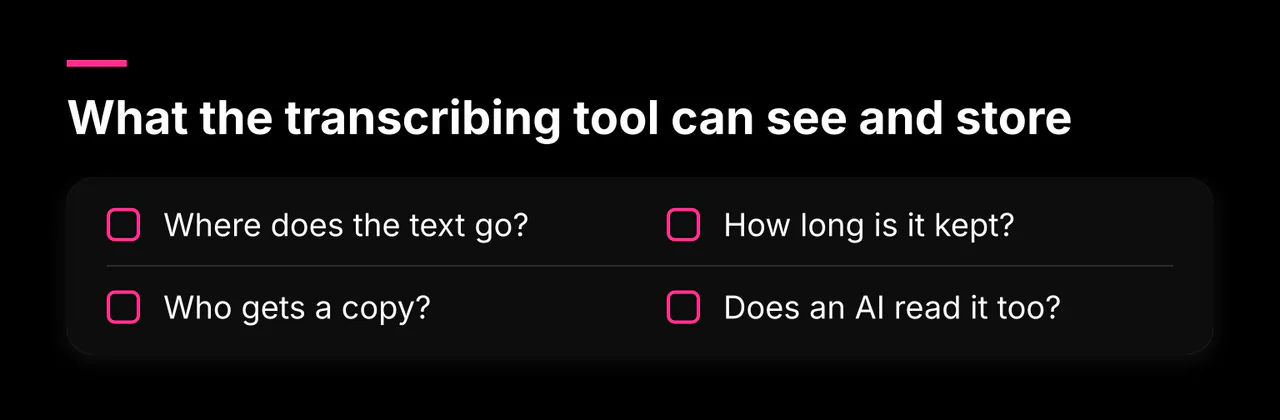
- Where does the text go? Teams stores transcripts in the organizer's OneDrive for Business. Zoom saves cloud-recording transcripts alongside the recording, and AI meeting assets live in the host's Zoom account.
- Who gets a copy? In Teams, people from the same organization can view the transcript after the meeting, and organizers can download it. In Zoom, meeting summaries and smart recordings are shareable files the host controls.
- How long is it kept? That depends on retention policies set by the organization's admins, not on anything you choose.
- Does an AI read it too? If a summary or AI feature is enabled, the transcript is processed by the vendor's AI to produce recaps and answers.
A Reddit thread about Zoom meetings "being transcribed or recorded without my knowledge" captures how common this confusion is. The honest answer: the banner is often the only disclosure you get, and it names the feature, not the destination.
What control you actually have as an attendee
Less than you'd like. Participants generally cannot switch transcription off themselves. Realistic options:
- Ask the host to stop it. Zoom gives attendees an "Ask host to stop transcription" option; the host can accept or decline. In Teams, only organizers, co-organizers and presenters can stop transcription.
- Hide your identity. In Teams, turn off automatic identification in captions and transcripts before the meeting.
- Hide your view. Turning captions off in Zoom only affects your screen; it does not stop the transcript for everyone else.
- Object, or leave. If the content is sensitive and no one will say who is transcribing or where the text goes, saying you'd rather not be transcribed, or dropping from the call, are legitimate responses. If you raise a sensitive topic by mistake, ask the host to stop transcription and, in Zoom, to delete the transcript generated so far, which Zoom offers when transcription stops.
How to turn it off for meetings you host
If the banner keeps appearing in your own meetings, it is usually a setting at the account, group, or admin level rather than something you clicked. Zoom's own community support makes this explicit: the message is usually caused by AI Companion meeting summary, audio transcription, or cloud recording settings enabled at the account, group, or admin level, not just your personal settings.
- Zoom, per meeting: stop transcription from the meeting controls (or via the Zoom AI menu, choose "Stop Zoom AI"). If you are recording, stopping the cloud recording also stops its transcript.
- Zoom, for future meetings: in the web portal, check Settings > AI Companion (turn off auto-start for meeting summary), Settings > Meeting (turn off meeting transcript or automated captions), and Settings > Recording (clear "Create audio transcript" and automatic cloud recording).
- Teams, per meeting: More actions > Record and transcribe > Stop transcription.
- Teams, for future meetings: meeting options let organizers choose off, record and transcribe, or transcribe only. If options are grayed out, your IT admin controls the policy; ask them to disable transcription and recording policies for your account.
If toggles keep switching themselves back on, you are on a managed account, and the fix is an email to your administrator, not another settings hunt.
When the banner gives no details
Some versions say only "this meeting is being transcribed" with no feature name. Quick diagnosis:
- Look for a flashing star or sparkle icon at the top of Zoom. That points to Zoom AI features. Click it to see which ones.
- Look for a transcript or pencil icon in the participants or controls area. That points to a transcript or someone's My Notes running.
- Check for a recording indicator. If recording is on, the transcript may be the recording's attached transcript.
- When in doubt, ask the host directly: which feature is transcribing, where is the text stored, and who can read it.
A related case: third-party AI notetakers
Sometimes the banner's wording is unusual, or a bot called Otter.ai or Fireflies appears in the participant list. That is not Zoom or Teams transcription at all. A third-party notetaker joined the call and is capturing audio on its own account. The fix is different too: you remove the bot from the meeting and block it at the source. We cover that in How to Stop Otter.ai, Fireflies and Other AI Notetakers from Joining Your Meetings.
The bigger picture
A transcription banner is a small instance of a larger problem: other people's tools deciding what reaches you and what gets kept from your interactions. The same logic applies upstream. If unsolicited sales pitches keep turning into meetings that arrive with AI notetakers attached, the better fix is to screen those pitches before they ever get a calendar slot. For the broader system, see Reclaiming Your Time from Bad Meetings, and for related coverage, our Guides hub.
And if what you really want is fewer pitch calls on your calendar in the first place, sign up to create a screener and let inbound pitches qualify themselves before they reach you. There is more background in What Is Meeting Transcription and How It Works if you want the mechanics of transcription itself.