Guide
Reclaiming Your Time from Bad Meetings: A Practical System for Pitch-Heavy Inboxes
Summary of the Article
You can take your calendar back with a four-step system: audit where your meeting hours actually go, cut off the spam and auto-added invites at the source, screen pitches before they become meetings, and spend the freed hours on purpose. Most people never reclaim time because they fight invitations one by one instead of fixing the intake settings. Here's the short version:
- Audit first: count recurring meetings, auto-added invites, and pitch calls so you know what you're actually cutting.
- Stop spam invites at the source: Google Calendar and Outlook both have settings that keep unknown senders off your calendar.
- Screen pitches before booking: use simple triage rules, or an AI screener that asks follow-up questions for you.
- Expect some friction: blocking isn't perfect. Some real invitations get flagged, and some spam comes back.
The phrase "reclaiming my time" became a popular way to say "my time is not for you to spend" after a US Congresswoman made it famous in 2017 (the museum history traces it further back to Black parliamentary practice). That's exactly the spirit of this guide: your calendar isn't a public booking page.
Why your calendar fills up with meetings you never chose
Three inflows feed a bad calendar:
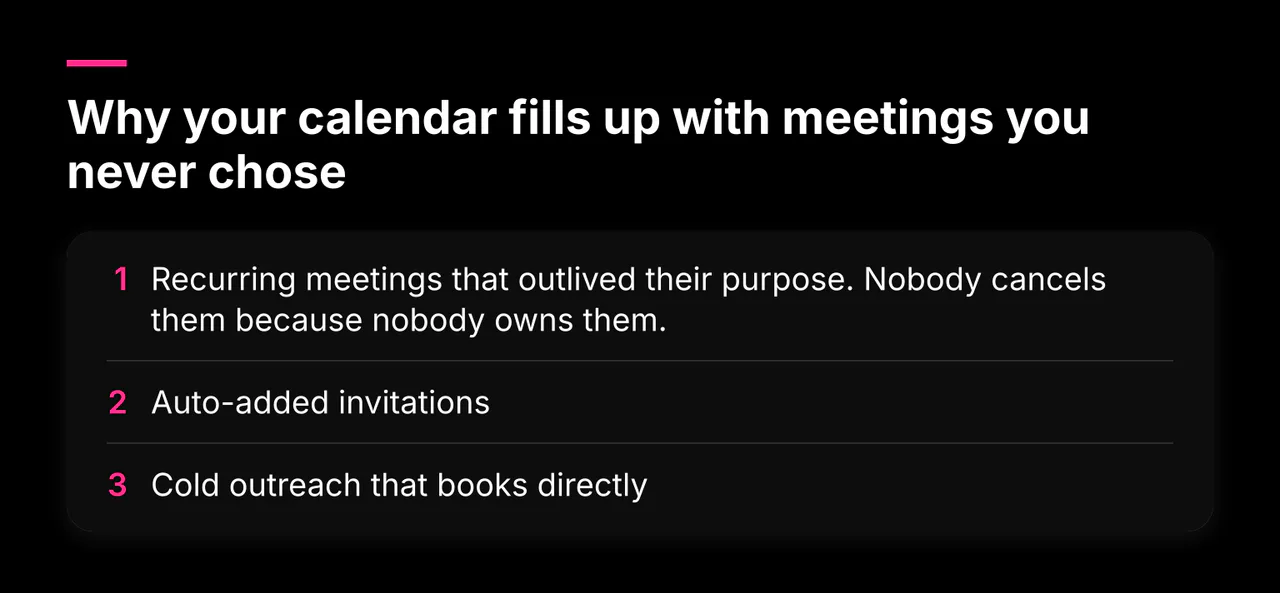
- Recurring meetings that outlived their purpose. Nobody cancels them because nobody owns them.
- Auto-added invitations. Some calendar apps add any invite to your calendar by default, which is why spam events and bot booking links appear even when you never accepted.
- Cold outreach that books directly. Salespeople who can't get a reply by email will sometimes send a calendar invite (or a booking link) and let the meeting "accept itself" into your week.
A calendar problem is really an intake problem. Fix the intake and most of the week clears itself.
Step 1: Audit where your calendar time actually goes
Before deleting anything, spend 15 minutes with last month's calendar and count:
- Recurring meetings: how many repeat weekly, and would anyone notice if one stopped?
- Invitations you never accepted: events that appeared on their own. This tells you if your auto-add settings are open.
- Pitch-driven calls: meetings booked through cold outreach. Note who sent them and how they got in (LinkedIn, email, a shared contact's intro).
Total the hours. Most people find 3 to 8 hours a week that they never deliberately agreed to spend. That number is your target.
Step 2: Stop unwanted meeting invitations in Google Calendar
Google Calendar has three tools that work together:
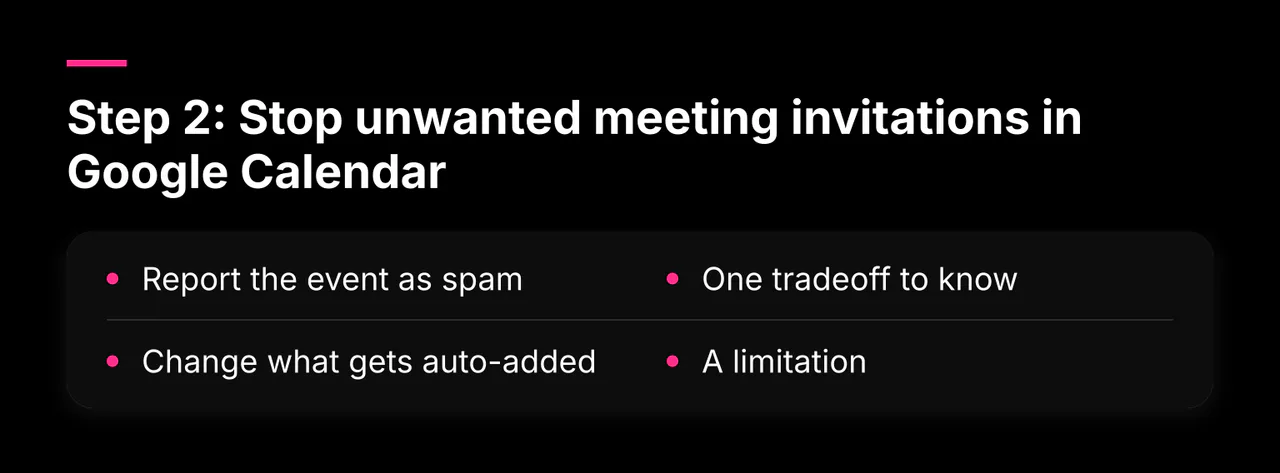
- Report the event as spam. Open a suspicious event, find the report option, and it's removed from your calendar. This only works for invitations sent from Google Calendar itself; events created by other apps or providers can't be reported this way, per Google's own guidance.
- Change what gets auto-added. Go to Settings, then General, then Event settings, and set "Add invitations to my calendar" to "Only if the sender is known." Events then appear only when the sender is in your contacts, in your organization, or someone you've interacted with, as described in Google's invitation management help. Unknown senders still get an email path to you, but they no longer land on your calendar directly.
- One tradeoff to know: Google notes that this setting can reveal to senders that they aren't in your contacts. For most people that's a fair price, but it's a real signal you're sending back.
- A limitation: blocking senders in Calendar works for Google-account senders. If someone sends from a non-Google address, handle the block in Gmail instead.
Step 3: Stop unwanted meeting invitations in Outlook
Outlook's controls differ by version, so check which one you're on:
- Delete without responding. In classic Outlook, right-click the event, choose Delete, then "Do Not Send a Response." Deleting and declining confirms your address is live and often earns you more spam. The new Outlook interface has limited this option, so if you can't find it, Microsoft's support community recommends switching to the classic desktop app for that one action (see the Microsoft Q&A thread on spam meeting invitations).
- Report as junk and block the sender. Add repeat offenders to your blocked senders list in Settings, then Mail, then Junk email, following Microsoft's junk filtering guide.
- Stop auto-adding events from email. In classic Outlook, under File, Options, Mail, Tracking, you can turn off automatic processing of meeting requests so invites wait for you instead of becoming events.
| Setting | Google Calendar | Outlook |
|---|---|---|
| Auto-add control | "Add invitations to my calendar: Only if the sender is known" | Turn off automatic processing of meeting requests (classic Outlook) |
| Report spam | Built-in report-as-spam for Google-sent events | Report the invitation email as junk, then delete the event without responding |
| Block sender | Google-account senders; others via Gmail | Blocked senders and domains list in Junk email settings |
| Biggest trap | Setting can reveal you don't know the sender | "Delete and decline" sends a response to spammers |
If you also get AI notetaker bots joining meetings (Otter, Fireflies and similar), that's a separate layer of the same defense. Our guide on how to stop Otter.ai, Fireflies and other AI notetakers from joining your meetings covers it step by step.
Step 4: Screen inbound pitches before they reach the calendar
Settings stop the spam. They don't stop the human salesperson who writes a genuine-sounding pitch and asks for "a quick 15 minutes." For that layer, triage on paper first:
- Define your yes criteria. What would a pitch need to include for you to say yes? A named use case, a fit with something you're actually buying this quarter, a sender you can verify.
- Auto-decline patterns. "Quick call to pick your brain," vague intros, booking links sent before any context, and anything from a brand-new domain are usually not worth a meeting.
- One-question test. If a single reply ("What specific problem do you solve for us?") can't be answered in two sentences, decline without guilt.
Applying those rules by hand works, but it still costs you reading time on every pitch. This is where an AI pitch screener fits as a worked example: it receives inbound LinkedIn and email pitches, asks follow-up questions based on criteria you set, filters weak offers, and hands you summaries of only the qualified ones. The tradeoff is honest: you're delegating first-contact judgment to a set of rules you wrote, so a nuanced pitch could get filtered before a human reads it. Review what it declines occasionally and adjust the criteria.
Common obstacles when you start blocking and screening
- Events come back after you delete them. Spam often syncs across devices, so deleting on one device while another still holds the invite can let it reappear. Delete from the primary account and check other signed-in devices.
- Senders re-approach from new addresses. Blocking one address won't stop a fresh domain, so lean on the auto-add settings, not just blocks.
- Admin-managed settings. On work or school accounts, your administrator may control which invitation options you can change, as Google's help notes. If a setting is grayed out, ask IT.
- False positives. "Only if the sender is known" can hide a real invitation from someone you simply never saved as a contact. Skim your invitation emails daily for the first week after changing settings.
Step 5: Decide what the reclaimed hours are for
Time you don't assign gets refilled. The moment your audit shows hours back, write down where they go: deep work, a project you keep postponing, or simply fewer evenings online. Books like the academic collection Reclaiming Time and its companion volume (SUNY Press) explore time as something held, spent, and contested. On a smaller scale, your weekly calendar is the same negotiation, and the winner is whoever sets the rules first.
If the pitch layer is your biggest leak, the next step is simple: sign up to create a screener and let your criteria do the first pass. You can also browse the rest of our guides on keeping pitches and calls off your calendar.