Guide
How to Stop Otter.ai, Fireflies and Other AI Notetakers from Joining Your Meetings
Summary of the Article
An AI notetaker joins your meeting in one of three ways: you connected it to your calendar, another participant did, or someone with admin access wired it into your workspace. Each cause has a different fix, so the fastest path is to identify whose bot it is, then apply the matching fix.
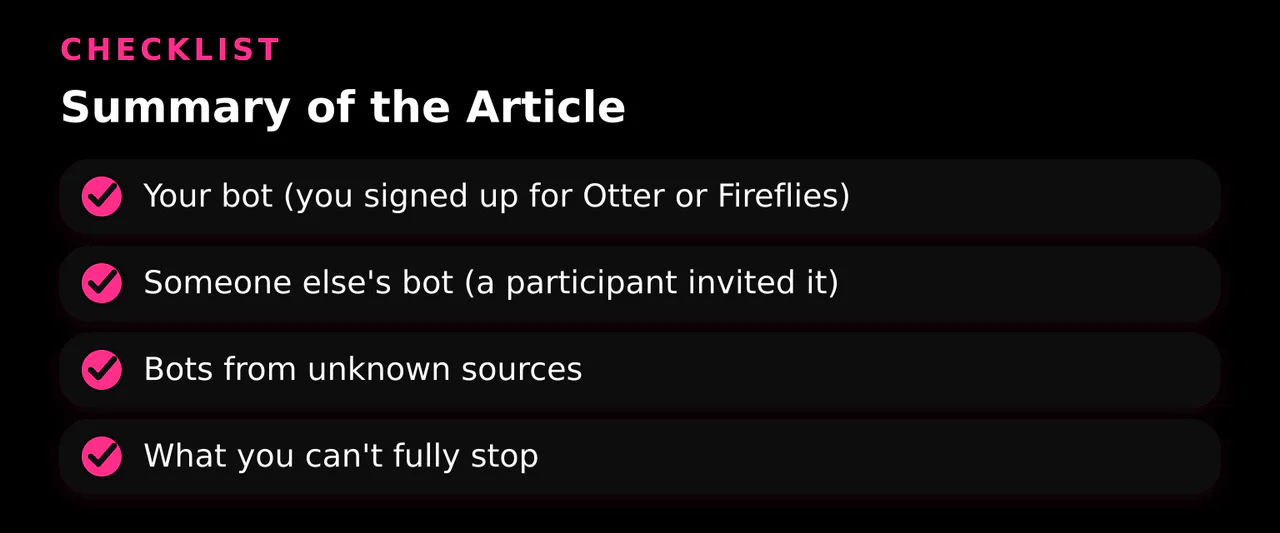
- Your bot (you signed up for Otter or Fireflies): turn off auto-join in the vendor's settings, disconnect your calendar, and revoke the app's access in Zoom, Google, or Microsoft.
- Someone else's bot (a participant invited it): use host controls on the platform, such as Zoom's domain block list or Teams' external bot policy.
- Bots from unknown sources: lock meetings, use waiting rooms, and if you're an admin, block external bots at the policy level.
- What you can't fully stop: a participant running a notetaker app on their own device, and bots that use alternate domains to dodge domain block lists.
The Quick Answer: Three Levers, One Question
There are exactly three places a notetaker bot can be stopped:
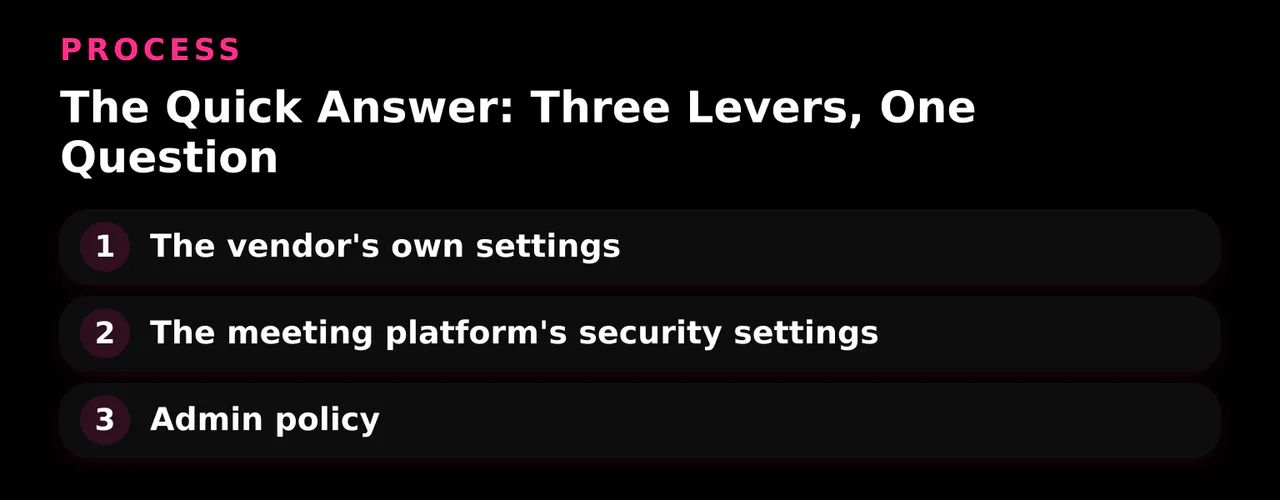
- The vendor's own settings. Otter.ai and Fireflies.ai both have auto-join switches. If the bot is yours, this is the fastest fix.
- The meeting platform's security settings. Zoom, Teams, and Meet each let hosts restrict who and what can join.
- Admin policy. If you run the tenant or workspace, you can block external bots for everyone, not just yourself.
The question that tells you which lever to pull: who authorized this bot? The next section helps you answer that.
Step 1: Figure Out Whose Bot It Is
Before you change any setting, work out where the bot came from. Check the bot's participant name and the email or account it displays when it joins.
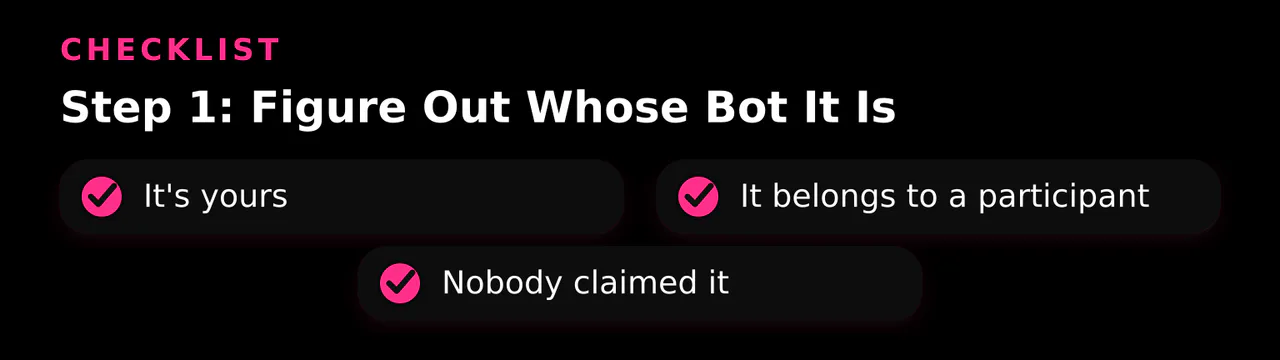
- It's yours. You signed up for Otter.ai or Fireflies.ai at some point and connected your Google or Microsoft calendar. The bot joins meetings on your calendar. Jump to the section for that vendor below.
- It belongs to a participant. The bot appears when a specific colleague or guest joins, or the meeting invite includes a guest whose calendar has the bot attached. You can't change their settings, so use host-level and platform controls.
- Nobody claimed it. The bot appears with no obvious owner. This usually means someone connected it to a shared calendar or a meeting add-in, or an app was installed at the workspace level. Check who the bot's account says invited it, then move to the admin sections.
A practical tip from IT admins dealing with this problem: the participant list and the meeting invite guest list together usually reveal the owner (see the r/sysadmin discussion on blocking AI notetakers).
Step 2: If the Bot Is Yours - Otter.ai
Otter's Notetaker joins Zoom, Google Meet, and Teams meetings by reading your synced calendar. To stop it:
- In Otter, go to Integrations → Meetings tab → Default auto-join settings and choose Meetings I manually select. Otter will stop auto-joining every calendar event with a valid meeting link (per the Otter Notetaker Help Center).
- Check your upcoming events in Otter's homepage calendar. Any event you previously toggled on keeps that setting, so turn those off manually.
- To cut it off completely, disconnect your calendar in Otter's settings so no future events sync at all.
- Revoke Otter's access on the platform side too: in Zoom's App Marketplace, remove the Otter app; in Google, remove it from your account's third-party access list; in Microsoft 365, remove the app from your account's apps and services page.
- If you're done with Otter entirely, delete your account in its settings. This matters more than you'd think: a forgotten account with calendar access keeps joining meetings long after you stopped thinking about it.
If the bot is still showing up in Teams or Outlook after this, other people in your tenant may have installed it. There's a Microsoft Q&A thread with tenant-level removal steps for exactly this case: Delete Otter Notetaker from Teams and Outlook.
Step 3: If the Bot Is Yours - Fireflies.ai
Fireflies works the same way: it reads your calendar and auto-joins events with meeting links. To get rid of it:
- Open Fireflies settings and change the auto-join behavior so it stops joining meetings on its own.
- Disconnect your calendar integrations (Google Calendar and/or Outlook) so Fireflies loses visibility of future events.
- Revoke Fireflies' OAuth access in Google Account security settings or Microsoft's app access page, the same way you would for Otter.
- If you have a paid plan and want out completely, cancel the subscription and delete the account; Fireflies documents the cancellation flow in its own cancellation guide.
- In a Microsoft tenant, the Fireflies enterprise app can also be removed by your admin (see the Teams admin section below).
Step 4: Block Notetaker Bots in Zoom (Host)
If bots are being invited by other people, your own vendor settings won't help. Zoom gives hosts several controls:
- Sign in to the Zoom web portal, click Settings → Meeting tab, and scroll to Security.
- Enable Block users in specific domains from joining meetings and webinars and add the domains you want to block. Zoom's own support article covers this setting: Blocking users in specific domains.
- Important caveat from Zoom's documentation: this works in conjunction with authentication. If your meetings don't require participants to sign in, Zoom can't verify which domain a joiner is authenticated with, so the block list can't act on them.
Common domains to add:
otter.aifireflies.airead.ai
- Also turn on the waiting room so unrecognized joiners need manual approval, and enable Only authenticated users can join meetings for sensitive meetings. Zoom also documents broader bot-blocking protections in its Blocking bots from joining meetings and webinars article.
- During a live meeting, lock the meeting and remove unrecognized participants by right-clicking their names.
Two honest limitations: the domain block is a per-user setting unless an admin locks it org-wide, and bot vendors sometimes join from alternate domains, which slips past a domain list. Treat domain blocking as one layer, not a guarantee.
Step 5: Handle Bots in Microsoft Teams (Individual Hosts)
For a single meeting:
- Remove the bot participant from the in-progress meeting.
- In meeting options, set Who can bypass the lobby to Only organizers (or organizers and co-organizers, never everyone). Bots then wait in the lobby instead of walking in.
- If the bot arrived as an installed Teams app, your admin can block it org-wide (next section).
Step 6: Block Bots in Microsoft Teams (Admins)
Teams now has a dedicated meeting policy for external bots. In the Teams Admin Center, under meeting policies, look for Manage external bots and their access to meetings in the Meeting Join and Lobby section. Options:
- When detected, require approval before joining (default): Teams detects external AI bots and holds them in the lobby until an organizer explicitly admits them.
- Do not detect bots: bots join like any other participant. Leave this off.
PowerShell admins manage it with Set-CsTeamsMeetingPolicy and the ExternalBotAccessMode attribute, as documented in Microsoft's guide to managing external bots and the Set-CsTeamsMeetingPolicy reference.
Two more admin-level moves:
- In Teams Admin Center → Teams apps → Manage apps, block the Otter and Fireflies apps so users can't install or use them in Teams.
- In Entra ID (Azure AD), restrict users' ability to register applications and consent to third-party apps. That stops the most common self-inflicted case: a well-meaning teammate connecting Otter or Fireflies to their calendar and letting it roam the tenant.
Note that detection isn't perfect: Microsoft says some bots may go undetected, and human participants are occasionally misclassified as bots and stuck in the lobby. Organizers can mark a false positive as "not a bot" to admit them.
Step 7: Google Meet and Google Workspace
Meet has fewer native bot controls than Zoom or Teams, so prevention leans more on access control:
- Revoke the bot's access at the source: in your Google Account, under third-party connections, remove Otter, Fireflies, or any notetaker app with calendar access. This stops the app from reading events and joining Meet calls.
- If you're a Workspace admin, use app access controls in the Admin Console to block the apps for your whole domain.
- During a call, hosts can remove unrecognized participants and (where available) restrict who can join to invited guests only.
Because Meet's native controls are thinner, expect mixed results against bots invited by other participants. Calendar revocation and workspace-level app blocking are your strongest tools here.
The In-Meeting Prevention Checklist
Whatever the platform, these habits stop most bots before they speak:
- Keep the waiting room on for meetings with outside guests.
- Set lobby bypass to organizers only in Teams.
- Lock the meeting once all expected participants have joined.
- Eject anything with a notetaker-style name ("Otter.ai Notetaker," "Fireflies Notetaker," "Meet Record") and note who was in the meeting when it appeared.
- Review calendar sharing: bots read calendars, so an over-shared calendar is a common root cause.
What You Can't Fully Stop
Be honest with yourself about the limits:
- On-device recording. If a participant runs a notetaker app locally or plays meeting audio into another tool, nothing server-side can block it. Platform policies govern what joins the meeting, not what participants do on their own machines.
- Alternate domains. Bot vendors can join from domains you haven't blocked, so a Zoom block list needs maintenance and still isn't airtight.
- Detection gaps and false positives. Teams' bot detection is good but not perfect, and it occasionally flags humans as bots.
Common Questions
Why does Otter keep joining after I turned it off? Events you manually toggled on keep that setting even after you change the default. Check each upcoming event in Otter's calendar view and toggle them off individually.
Do I need admin rights to stop these bots? For your own bot, no. For bots invited by others, individual host controls (waiting room, domain blocks, lobby settings) go a long way. Org-wide enforcement requires an admin.
Can I block AI notetakers on Zoom permanently? You can enable the domain block list and bot protections for all meetings you host, but you'll need to maintain the domain list and rely on authentication being required for the block to verify joiners.
Once the bots are out of your meetings, the next headache is usually what got onto your calendar in the first place: unsolicited sales pitches. That's the problem Let's Not Have a Call was built for. It screens inbound pitches before they reach your calendar, so the only calls you ever see are the ones worth taking. If your meeting problem is really a sales-pitch problem, sign up for the screener.