Guide
How to Block an Email Address in Gmail (Desktop, iPhone, and Android)
Summary of the Article
How do you block an email on Gmail? Open a message from that sender, tap the three-dot menu at the top right, and choose Block "sender." After that, every new email from that address skips your inbox and goes to Spam automatically. The sender gets no notification, and old messages stay where they are.
The steps take under a minute on any device:
- Computer: open the message, click More (the three dots) next to Reply, then Block "sender."
- Gmail app on iPhone: open the message, tap More (the three dots) at the top right of the message, then Block "sender."
- Gmail app on Android: the same three steps; the menu sits in the top right of the open message.
- To unblock: open a message from the sender and tap Unblock, or go to Settings, then Filters and Blocked Addresses on a computer.
Blocking hides one exact address. It does not stop similar addresses or whole domains, and it is not the same as reporting spam. If one sender keeps coming back, a filter or a spam report usually works better.
Block a sender on a computer
Gmail has no box where you type an address to block it. You block a sender from a message they already sent you.
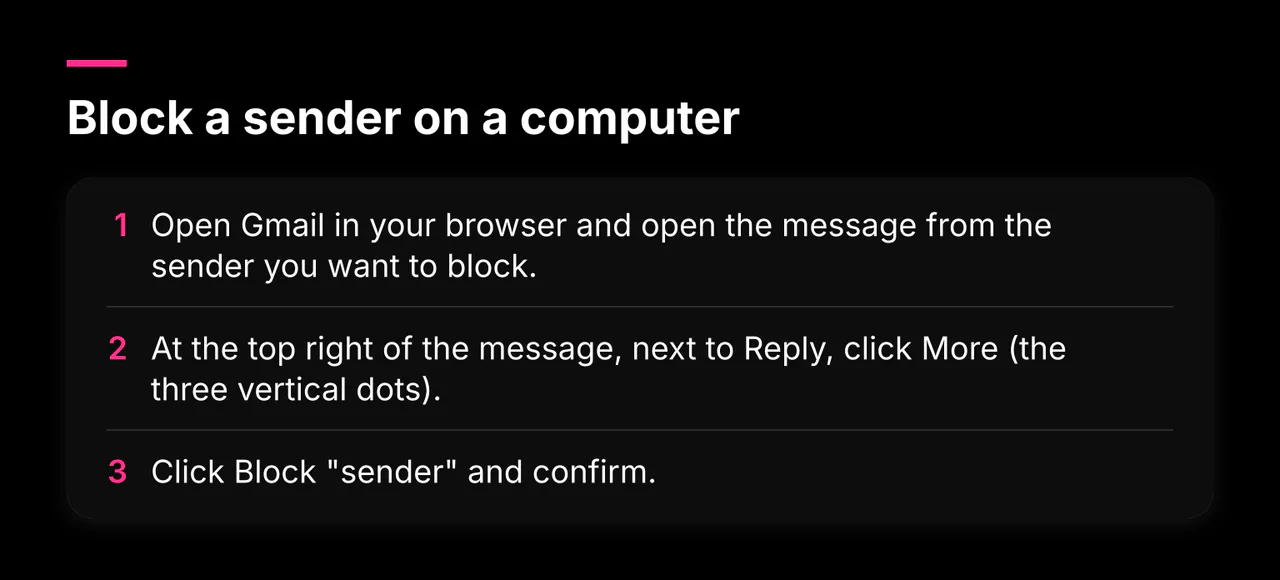
- Open Gmail in your browser and open the message from the sender you want to block.
- At the top right of the message, next to Reply, click More (the three vertical dots).
- Click Block "sender" and confirm.
That is the whole process. From now on, Gmail routes that address's mail to Spam without showing it to you.
Google documents these exact steps on its Gmail support page for blocking senders, along with the unblock steps below.
Block a sender in the Gmail app on iPhone or iPad
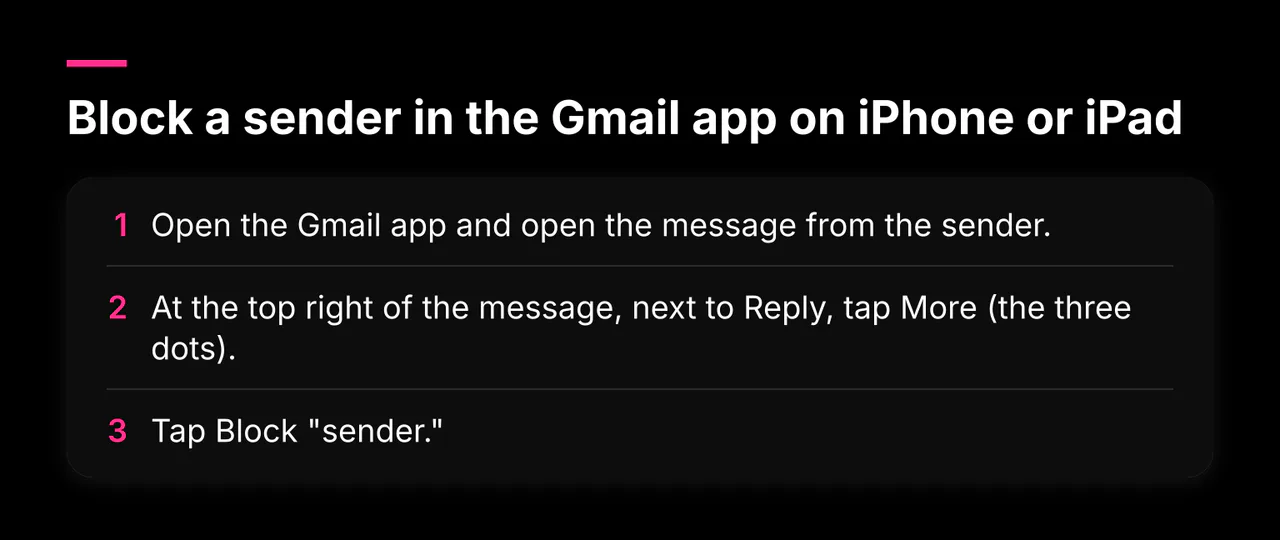
- Open the Gmail app and open the message from the sender.
- At the top right of the message, next to Reply, tap More (the three dots).
- Tap **Block "sender."
Google's instructions for the Gmail app describe the same path on phones. The three dots live inside the open message, at the top right. If you are looking at your inbox list instead of an open message, you will not see them. On mobile, Gmail skips the confirmation pop-up you get on a computer; the block applies the moment you tap.
Also note that this only works in the Gmail app. If you read Gmail through Apple's Mail app, or through Gmail in your phone's browser, block the sender in the Gmail app or on a computer instead. The block applies to your Gmail account on every device.
Block a sender in the Gmail app on Android
The Android steps match the iPhone ones:
- Open the Gmail app and open the message.
- Tap the three dots in the top right of the message, next to Reply.
- Tap Block "sender" and confirm.
A gray banner appears on the message confirming the block. If you do not see a Block option at all, check that you are in the Gmail app rather than your phone's built-in mail app, which handles blocking differently.
What actually happens after you block someone
This is where a lot of confusion lives, so here is what blocking does and does not do.
What happens: every future email from that exact address goes straight to your Spam folder. Gmail permanently deletes messages that have sat in Spam for 30 days, so blocked mail does not pile up forever; it disappears after about a month. Messages you received before the block stay in your inbox. If you want them gone, search for from: followed by the address, select the results, and delete them.
What does not happen: Gmail does not refuse delivery or tell the sender. The messages still arrive on Google's servers; they just land in Spam. From the sender's side, nothing changes: no bounce message, no error, no blocked indicator. This is why some people say Gmail "doesn't really block" anyone. That is technically true. Blocking is a personal sorting rule, not a firewall. The sender can keep sending forever, and you will never see it unless you go looking in Spam.
Blocking is also not the only tool, and the tools get mixed up often. Here is how they differ:
| What you use | What it does to future mail | Who else it affects |
|---|---|---|
| Block "sender" | Moves new mail from that one exact address to your Spam | Only your account |
| Report spam | Moves the message to Spam and trains Gmail's filters | Helps other Gmail users too |
| Create a filter | Applies your own rule, including to a whole domain; you choose archive, delete, or label | Only your account |
| Unsubscribe | Asks the sender to stop marketing mail at the source | Tells the sender you opted out |
For anything suspicious, like a phishing attempt, use the report option rather than a plain block. Reporting spam sends a signal that helps Gmail's filters treat similar mail as spam for everyone; blocking only affects your own account and one address. Streak's guide to blocking emails in Gmail covers the difference between reporting spam and blocking in more detail.
How to unblock a sender
You have two ways to reverse a block.
From a message: open any message from the blocked sender. Check Spam if you cannot find one in your inbox, because that is where their mail has been going. A banner at the top says the sender is blocked. Click or tap Unblock sender and confirm.
From settings, on a computer:
- Open Gmail and click the gear icon at the top right.
- Click See all settings.
- Open the Filters and Blocked Addresses tab.
- Scroll to the blocked addresses list. Check the box next to a sender and click Unblock selected addresses.
This settings tab is also your full blocked-sender list. If you cannot remember who you blocked, this is where to look. Unblocking is silent too: the sender is never told, and their future mail returns to your inbox. Mail they sent while blocked stays in Spam, so unblocking is not retroactive.
Limits of the Block button
Blocking works on one exact email address, and that narrowness trips people up:
- Variant addresses: if a sender writes from
name+tag@company.comtoday andname2@company.comtomorrow, each new address sails past your block. Sales people do this constantly. - Whole domains: the Block button cannot block every address at a domain. To do that, create a filter instead: open the message, click More, choose Filter messages like these, enter the domain, and set the filter to delete or archive matching mail.
- Existing messages: blocking does not clean up anything already in your inbox.
- Work accounts: if you use Gmail through a company Workspace account, your administrator controls email delivery for the whole organization and can block or allow senders centrally. Google documents how Workspace admins block addresses and domains at the organization level. If your options look different from the steps above, ask your IT team.
For a persistent pitch source, a domain-wide filter is usually the faster fix than blocking addresses one by one.
When blocking is not enough
Blocking one address at a time works fine for the occasional annoying sender. It falls apart against a steady stream of sales pitches, because pitch senders rotate addresses and domains faster than you can block them. A few stronger options:
- Filters: set rules on your own terms, for example archive anything from a whole domain. Google's support page covers filter creation alongside blocking.
- Report spam and phishing: this trains Gmail's filter and helps other users, and it is the right move for anything suspicious.
- Unsubscribe: for legitimate newsletters and marketers you once signed up for, the unsubscribe link stops future mail at the source, which blocking never does.
- Screen who gets through: if your real problem is sales pitches booking your calendar rather than cluttering your inbox, a practical system for pitch-heavy inboxes goes beyond email triage. The same idea applies on LinkedIn, where blocking does not exist in the same form; stopping AI notetakers and other unwanted meeting guests covers the meeting side of the problem, and how AI phone screening works explains what screening before a call looks like in practice.
More practical guides like these live in our guides hub.
Start with the block, then decide if you need more
The three-dot Block button solves the single annoying sender in seconds. Now you know exactly what it does: future mail goes to Spam, Gmail clears it out after 30 days, the sender never knows, and you can reverse it any time from Filters and Blocked Addresses.
If instead you spend real hours every week fielding sales pitches by email and LinkedIn, blocking addresses is a treadmill. Our AI pitch screener asks your qualifying questions automatically, filters weak offers, and only surfaces the pitches worth your time. If that sounds useful, sign up to create a screener.